The usual advice is to pick an eBay Store plan, upload a logo, and start listing. That's the wrong order if you haven't checked your selling limits or calculated whether the subscription will save you money. A polished storefront won't fix an uneconomic fee structure, unavailable inventory, or shipping promises you can't keep.
Learning how to open an eBay Store starts with a business decision, not a design task. Choose a plan against your actual listing volume, prepare your fulfillment process, and then activate the subscription. Treat seller performance as part of setup, not something to repair after buyers complain.
Table of Contents
Store Tiers and Monthly Costs at a Glance
The monthly fee is the easiest number to read and the least useful one to decide on. An eBay Store subscription is a fee swap: you pay a fixed charge to reduce per-listing costs and gain listing capacity. The tier pays off only when the insertion fees you avoid exceed the plan price at the volume you run.
| Tier | Monthly renewal | Yearly renewal (monthly equivalent) |
|---|---|---|
| Starter | $7.95 | $4.95 |
| Basic | $27.95 | $21.95 |
| Premium | $74.95 | $59.95 |
| Anchor | $349.95 | $299.95 |
| Enterprise | Not available monthly | $2,999.95 |
The renewal prices come from eBay's Store subscription pricing guide, which presents yearly-renewal prices as monthly equivalents, including $2,999.95 for Enterprise. eBay publishes listing allowances for Basic and Premium: 1,000 free fixed-price listings and $0.25 per extra listing for Basic, compared with 10,000 and $0.10 for Premium, according to eBay's subscriptions and fees page.
Read the allowance before the price
Estimate the fixed-price listings you will create or renew in a normal month. Inventory count is not the same number. A product that sits in a bin for six months does not consume a monthly listing allowance the way a new or renewed fixed-price listing does.
Run the break-even test on the included allowance. Divide the monthly plan fee by the number of free fixed-price listings it includes. Basic works out to roughly 2.8 cents per included listing. Premium works out to less than a cent. If the insertion fees you avoid across your real listing volume do not exceed the plan fee, the subscription loses money even when the per-listing math looks cheap. The lower extra-listing fee on Premium only matters after you exhaust the allowance and keep listing.
Starter has the smallest recurring charge. Basic and Premium are the two tiers with published allowances you can compare directly. Anchor and Enterprise need a stronger case than wanting room to grow: the monthly fee has to be covered by fee savings, usable listing capacity, or store features that produce measurable sales.
Monthly flexibility versus yearly commitment
Monthly renewal keeps the decision reversible while you test a product line. Yearly renewal lowers the displayed monthly equivalent, but it is a longer commitment. Check the charge shown at checkout, the cancellation terms, and whether the yearly price is billed upfront.
Keep the subscription separate from inventory, shipping supplies, returns, and advertising. A Store plan changes the fee structure and listing capacity. It does not make unsellable inventory sell. It also does not relax the performance standards buyers see: late shipments, unresolved cases, and inaccurate item descriptions count against you from the first sale.
Practical rule: Choose the lowest tier whose included allowance covers the fixed-price listings you will actually create or renew, then confirm that the insertion fees avoided exceed the plan fee at your volume.
What You Need Before You Subscribe
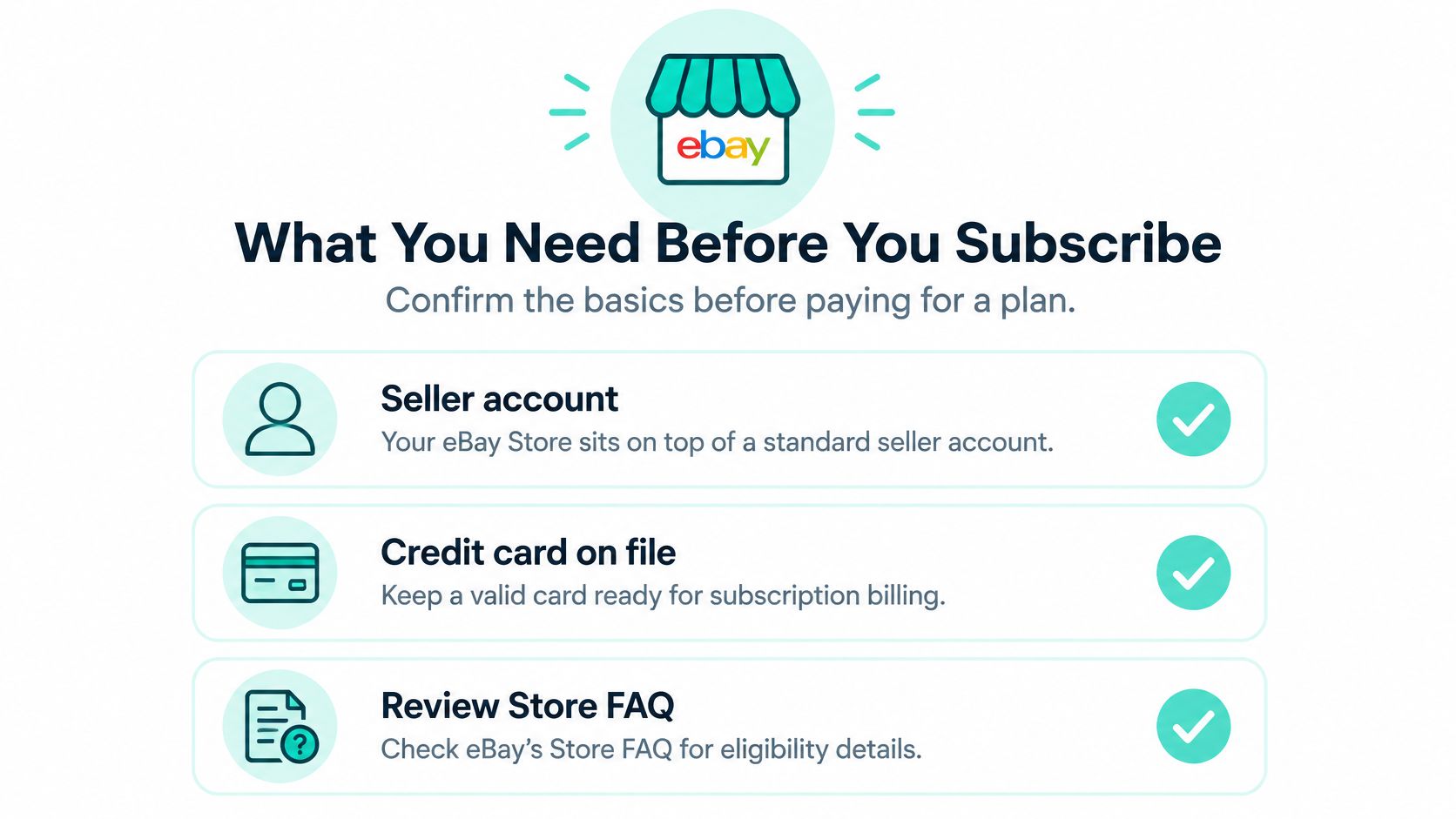
An eBay Store sits on top of a seller account. Get the account and operating basics ready before spending time on storefront artwork.
Use this checklist before opening the subscription screen.
Account and payment readiness
- Seller account: Establish the account you'll use to sell, rather than creating a separate identity just for the Store.
- Credit card on file: Keep a valid billing method ready so payment problems don't interrupt activation.
- Eligibility review: eBay's seller guidance and Store FAQ identify a seller account and credit card as requirements; the FAQ also lists a verified Premier PayPal account, so confirm the current requirements shown for your account rather than assuming that older payment arrangements still apply.
- Payout account: Link your checking account and complete any outstanding verification before subscribing.
- Selling-limit check: Record your item and category limits so you don't buy listing capacity your account can't use.
Business readiness
- Starting product line: Pick a coherent range that you can describe accurately and replenish reliably.
- Verified stock: Count physical inventory and assign a stock location to each item so a listing doesn't rely on a supplier's uncertain availability.
- Separate fee budget: Allow for selling fees, shipping, packaging, and refunds outside the subscription charge.
- Shipping capacity: Pack a sample order and test whether your planned handling time survives a busy workday.
- Buyer-message owner: Assign someone to answer messages within a day as an internal service target, with backup coverage when they're unavailable.
The sample-order test should include finding the item, checking its condition, choosing packaging, weighing the parcel, and preparing its label. If you can't complete that process reliably, extend the handling promise before publishing.
Before opening Seller Hub, write down your chosen tier, renewal preference, Store name, and expected monthly listing activity. Having those decisions ready reduces the chance of buying a plan because its upgrade screen looks appealing.
When a Store Pays Off for Your Listing Volume
A subscription should pass a fee comparison before it passes a branding review. Under eBay's displayed standard selling-fee schedule, the standard allowance is 250 listings per month, with $0.35 insertion fees afterward; final-value fees range from 2.5% to 15.3% by category, plus $0.30 per order of $10 or less or $0.40 above $10.
Say you create 400 eligible fixed-price listings in a month. Using that published insertion-fee schedule, the calculation is:
(400 − 250) × $0.35 = $52.50 without a Store.
Compare that with the Basic monthly-renewal charge in the tier table. Because the example fits within Basic's included allowance, avoiding those insertion fees leaves $24.55 after the subscription, before considering final-value-fee differences.
Insertion-fee break-even for Basic at monthly renewal
The following worked comparison uses the published fee schedule and subscription figures above. It assumes eligible fixed-price listings, no other promotional allowance, and listing activity within Basic's included allowance.
| Listings per month | Insertion fees without a Store | Basic monthly subscription | Difference after subscription |
|---|---|---|---|
| 100 listings | $0.00 | $27.95 | $27.95 additional cost |
| 250 listings | $0.00 | $27.95 | $27.95 additional cost |
| 330 listings | $28.00 | $27.95 | $0.05 saving |
| 400 listings | $52.50 | $27.95 | $24.55 saving |
| 600 listings | $122.50 | $27.95 | $94.55 saving |
The insertion-only break-even is therefore about 330 listings per month in this scenario. That's a screening calculation, not a universal recommendation: applicable final-value-fee discounts can make subscribing worthwhile at a lower volume.
Don't buy a Store to avoid fees you aren't currently paying.
A hypothetical seller listing 60 items monthly might gain little insertion-fee value from subscribing. Store features or category-specific fee savings could still justify the charge, but the seller needs to identify those benefits rather than assume them.
Build a useful comparison
Use a spreadsheet with monthly listing activity, average order value, category fee rate, and expected sell-through. Compare the non-Store result with each plausible subscription, including insertion fees, final-value fees, and optional upgrades.
Keep unsold inventory visible in the model. A generous listing allowance doesn't compensate for cash tied up in products buyers don't want, and final-value savings only occur when sales happen. Choose against expected net proceeds, not the largest advertised allowance.
How to Open Your eBay Store Step by Step
Complete account verification before subscribing. If you're still establishing the seller account, Next Point Digital's guide to start selling products on eBay is a useful companion for that earlier stage.
The setup sequence is straightforward once your account and plan decision are ready.
Activate the subscription
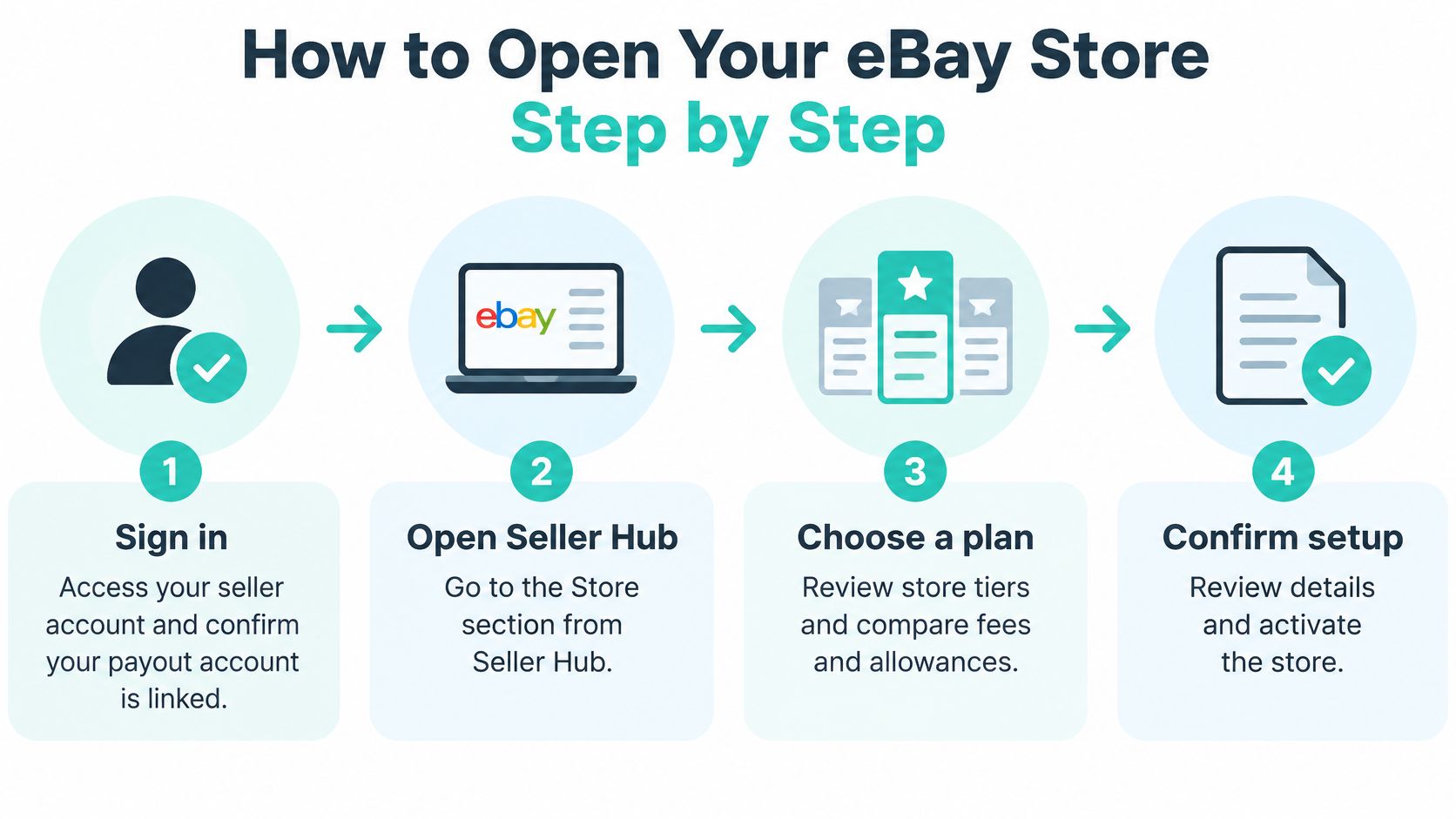
Sign in to your seller account. Confirm that you're using the account intended for the business and that its payout account is linked. A common mistake is doing the setup in a personal buying account while the business inventory belongs elsewhere.
Open the subscription controls. eBay's Store setup guide directs sellers through Seller Hub → Store → Manage subscription, or My eBay → Account → Subscriptions. Use those account controls rather than assuming the public storefront editor is where billing begins.
Choose the subscription level. Select the plan that matches your listing estimate and fee calculation. Don't choose by the plan's name alone or assume that a more expensive subscription gives a restricted account permission to list more inventory.
Select monthly or yearly renewal. Read the displayed commitment and cancellation terms before continuing. The common slip is comparing a yearly plan's monthly-equivalent price with a monthly plan without accounting for the longer obligation.
Enter the Store name. Check spelling, capitalization, and consistency with your packaging and other business profiles. Avoid a name tied so narrowly to a temporary product line that you'll want to replace it when the range changes.
Submit the order and verify the charge. Review the plan, billing choice, and Store name together before confirming. Save the confirmation and check the charge against the amount you expected, rather than treating the confirmation screen as the end of the task.
Verify the account after purchase
A subscription doesn't override existing item or category selling limits. Those restrictions remain active and can prevent you from using the plan's full listing allowance. If the available listing capacity looks smaller than the subscription allowance, investigate the account limit before attempting to upload more inventory.
Check that the Store appears as active in Seller Hub and that you can access its editing tools. Locate the subscription renewal date and recurring charge, then record them with your other business expenses.
The subscription continues until canceled, so put its renewal information somewhere you'll review before the next billing cycle. Don't rely on remembering which renewal option you chose.
Activation check: An active Store, accessible editing controls, and a recorded renewal obligation are stronger evidence of a completed setup than a finished logo.
Keep the initial launch controlled. Uploading every available product immediately makes it harder to spot errors in item specifics, shipping settings, or stock quantities before buyers encounter them.
Set Up Branding, Categories and Your Storefront
Build the storefront around buyer decisions, not your internal inventory system. eBay's opening-a-Store guidance supports configuring branding, custom categories, featured listings, and a buyer-facing preview after purchase.
Prepare your logo and banner before opening the editor so you can assess them together.
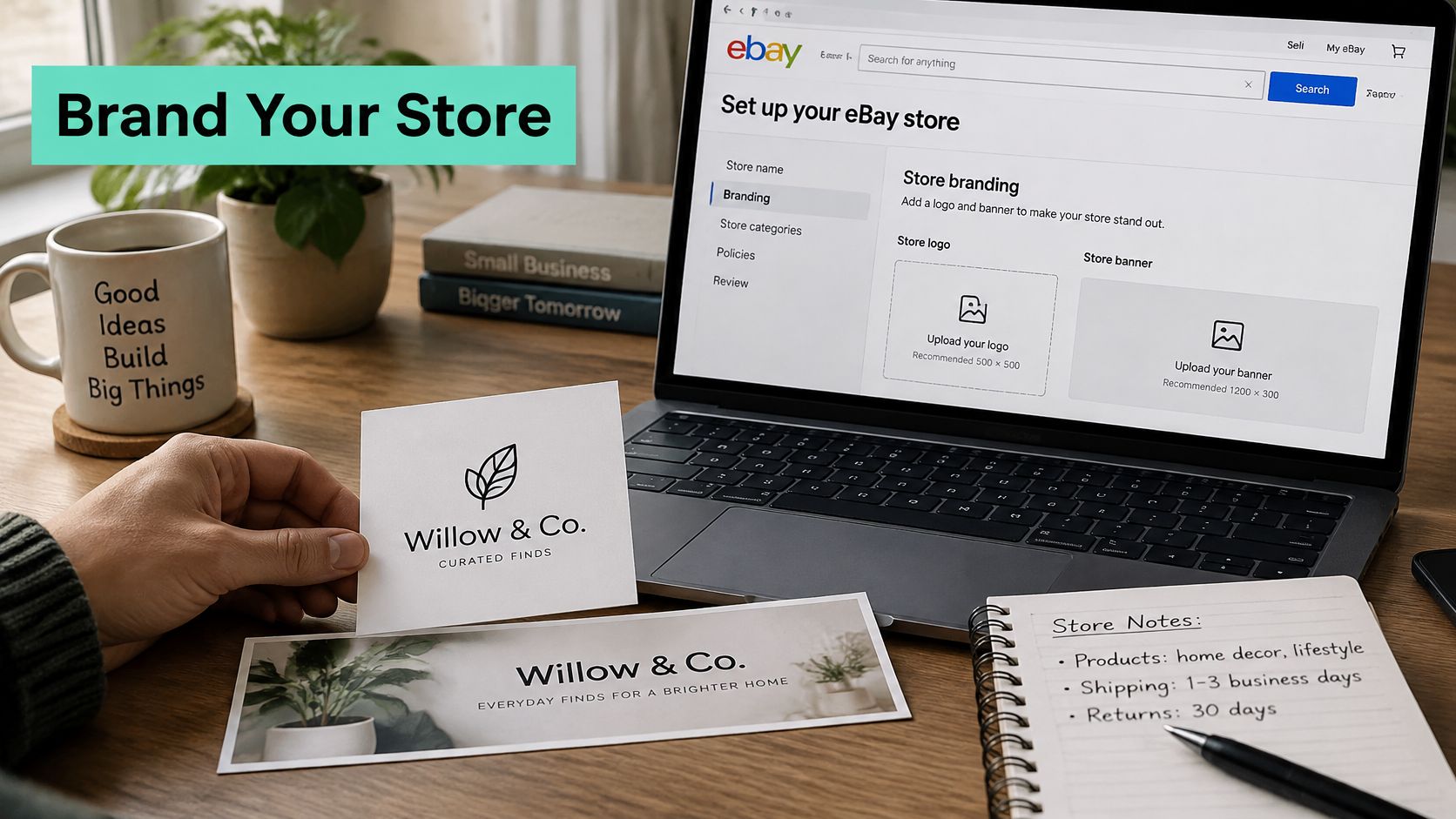
Build a buyer-friendly sample layout
For a hypothetical small home-goods range, use three room-based categories, such as Kitchen, Bathroom, and Living Room. Add five featured items, a single banner, and a short returns note that agrees with the policy in the listings.
Choose category names you can keep as the range expands. Supplier names and warehouse shelf codes might help your team, but they usually don't help a buyer find a storage basket or kitchen organizer.
Write a short description explaining what you sell and where buyers can find shipping and returns information. Feature accurately described, available products that you can dispatch on schedule, not awkward stock you're hoping extra visibility will rescue.
For a visual walkthrough, use the video alongside your own Store editor.
If you also sell through Amazon, Million Dollar Sellers' guide to build a multi-page Amazon store offers a useful comparison for organizing collections. Apply the buyer-navigation principle, not Amazon-specific setup instructions, to your eBay categories.
Preview before sending traffic
- Mobile layout: Check whether the banner and description remain readable on a phone.
- Category paths: Open each category and confirm its contents match the label.
- Featured stock: Verify availability and inspect the actual listing, not just its thumbnail.
- Policy consistency: Make sure returns language and handling promises agree wherever buyers encounter them.
Use our guide to improving e-commerce sales through offers, social proof, and targeted traffic when refining the buying experience. Before the first sale, confirm that both desktop and mobile previews work and that the storefront doesn't contradict your listing policies.
Seller Performance Targets to Hit From Day One
A new Store doesn't get a practice period for inaccurate listings or missed dispatch promises. Build your workflow around the standards before publishing inventory.
eBay's seller-performance policy permits up to two cases closed without seller resolution or 0.3% of transactions, whichever is higher, and a transaction defect rate of 2% or lower; evaluations are generally monthly, using a three- or twelve-month lookback according to transaction volume. The operational targets are summarized below.
| Measure | Threshold | Day-one rule |
|---|---|---|
| Cases closed without seller resolution | Up to 2 cases or 0.3% of transactions, whichever is higher | Resolve buyer issues before escalation requires eBay intervention |
| Transaction defect rate | 2% or lower | Describe condition and specifications accurately; keep stock counts current |
| Late-shipment rate | Evaluated against stated handling and delivery commitments | Upload tracking promptly; dispatch within handling time |
| Performance review | Generally monthly, looking back 3 or 12 months | Check Seller Hub monthly for your status |
On a hypothetical account with 100 transactions, two unresolved cases reach the absolute case allowance, while two defective transactions equal the stated defect-rate threshold. That leaves little room for preventable stock cancellations or ignored buyer problems.
Tracking isn't the same as dispatch
Creating a label doesn't mean the carrier has accepted the parcel. Set handling time against the complete process, including picking, packing, and getting the order into the carrier's network.
Upload tracking when you prepare the shipment, then check acceptance scans. If collections regularly happen after your promised dispatch window, change the promise or the collection arrangement instead of assuming the label timestamp is enough.
Use a repeatable operating routine
- Reconcile orders daily: Match paid orders with available stock and identify anything awaiting action.
- Review shipment exceptions: Investigate parcels without expected acceptance scans.
- Answer buyer messages: Offer a specific resolution before an issue needs formal intervention.
- Inspect account health: Review Seller Hub alerts routinely and check your performance status at each evaluation.
Exceeding minimum standards can lead to selling limitations and higher final-value fees under the same policy. Don't wait for a downgrade notice to find the source of recurring complaints.
Our customer-retention playbook can help you organize consistent follow-up, but account protection starts with the basics. Set stock counts and handling times from real operating capacity before the first listing goes live.
Choose Your Tier and Plan the First 90 Days
Choose a subscription by eliminating poor fits, not by chasing the biggest allowance. Keep the tiers that accommodate your expected listing activity, compare their total fees with remaining unsubscribed, and select the lowest-cost option that produces a defensible benefit.
Use the summary as a decision aid, then check the actual terms in your account.
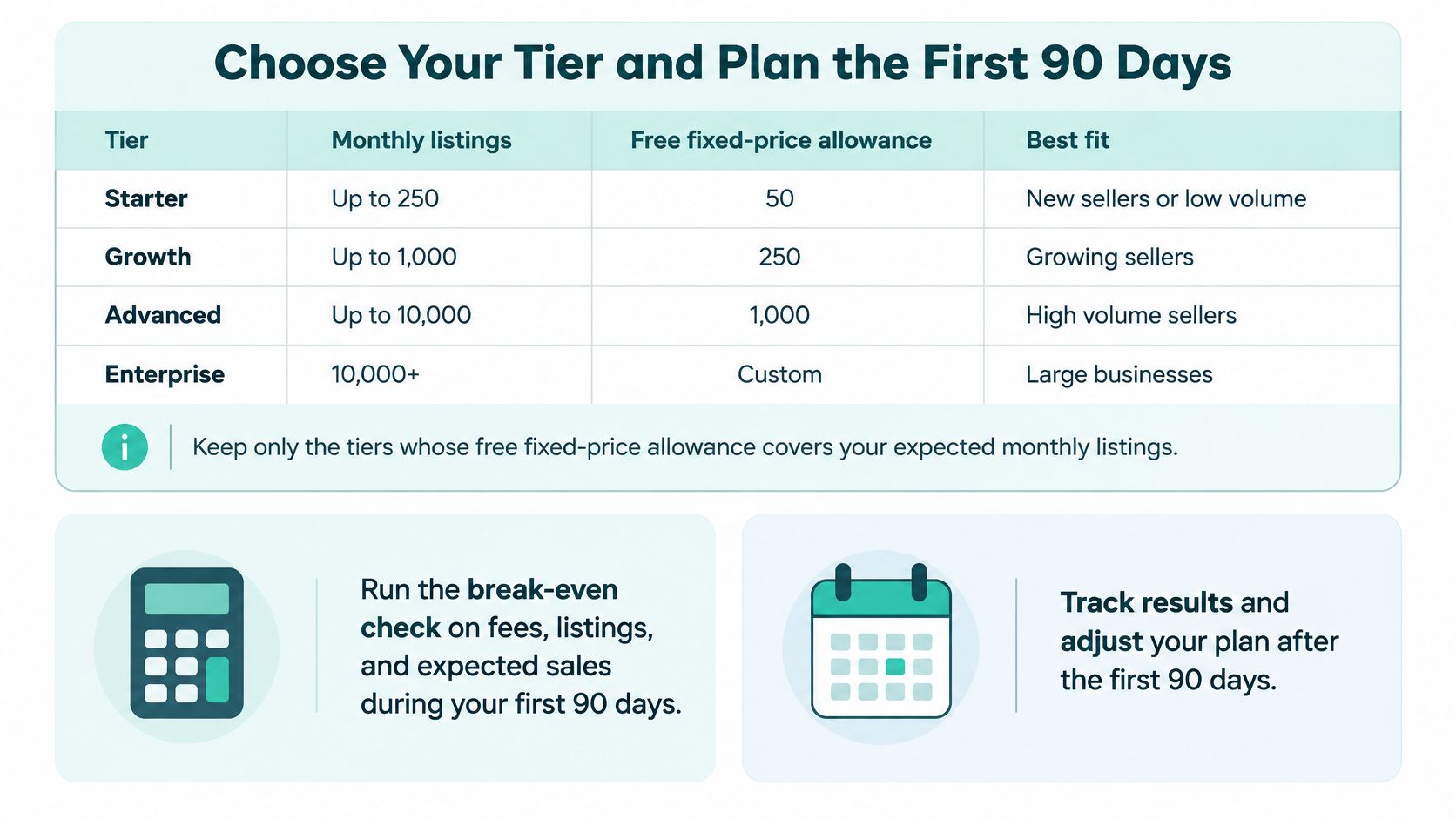
Stage the launch around operating evidence
Treat this as a proposed launch schedule, not an eBay requirement:
- Weeks one to four: Launch a focused product category with a handling promise you can meet consistently. Record packing problems, buyer questions, and listing details that need clarification.
- Weeks five to eight: Review performance status and address every open buyer issue. Where dispatch was late, fix the workflow before considering a shorter handling promise.
- Weeks nine to twelve: Add categories only when stock accuracy and fulfillment are stable. Consider another market only after checking whether your delivery and returns processes can support it.
Start domestically where practical. eBay's international seller-performance guidance explains that assessment can depend on the buyer's delivery address and relevant regional program, so your performance level can differ across regions. Overseas reach isn't a substitute for reliable domestic execution.
Add marketing after the buying process works
Don't pay to send more visitors to listings with unresolved availability or delivery problems. Once the operation is stable, use our comparison of online advertising platforms to assess where additional promotion fits your customers and margins.
This week, choose the tier, confirm the checkout price and renewal terms, and put your first-category launch date on the calendar. Keep the opening small enough that you can inspect every order and correct problems before expanding.
At SimpleLab Digital, we offer modular digital marketing services and monthly packages covering advertising, content, landing pages, and follow-up to support your e-commerce growth. Book a call for recommendations around your goals, budget, and current marketing, or select services and packages and add them directly to your cart.